Converting HTML to WordPress: What You Need to Know
What Actually Happens and Whether You Should Do It
When someone asks me about converting an HTML site to WordPress, my first question back is usually: what is it about the current site that is not working? Because the answer to that question determines whether WordPress is actually the right destination.
I have been through this exercise enough times - both for my own projects and inherited from clients - to have a view on it. WordPress is a legitimate choice for a specific set of requirements. It is also a significant ongoing maintenance commitment that most static-to-CMS migration guides do not mention. If you are converting a property developer's brochure site so their marketing team can update content without calling a developer, that is a reasonable case for WordPress. If you are converting it because WordPress feels like the natural default, there are other options worth knowing about before you commit.
This article covers both: how to actually do the conversion properly if you decide WordPress is right, and an honest assessment of when it might not be.
What the Conversion Actually Involves
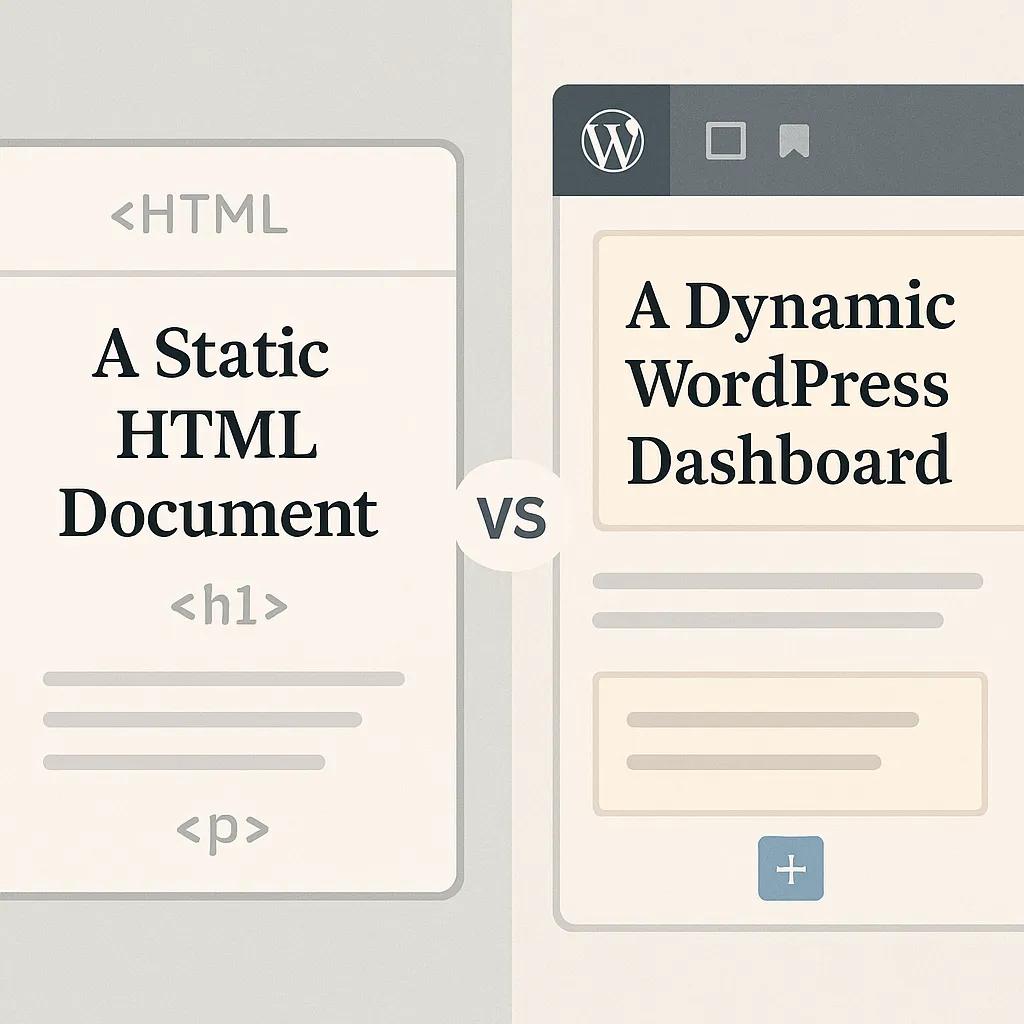
Converting an HTML site to WordPress is not, despite how most guides describe it, a matter of copying files and adjusting a few function calls. What you are doing is rebuilding a static document structure as a set of PHP templates that WordPress can render dynamically. The original HTML is reference material, not source code you are migrating.
WordPress uses a template hierarchy to decide which PHP file to load for any given page request. The hierarchy runs from most specific to most general. If someone visits a page about a specific author, WordPress looks for author-{slug}.php, then author-{id}.php, then author.php, then archive.php, and finally falls back to index.php. This fallback chain is the foundation of theme development and understanding it before you start saves significant debugging time later.
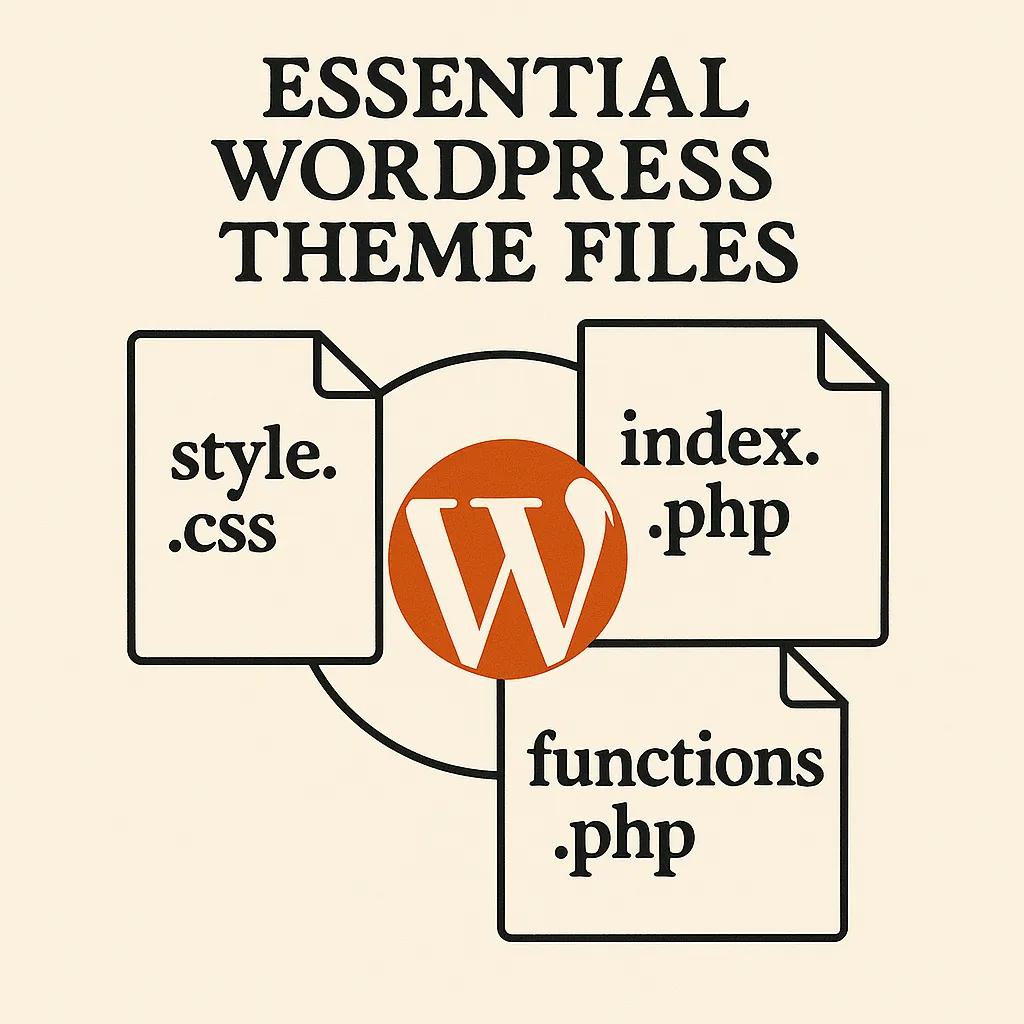
At minimum, a functional WordPress theme needs three files: style.css with a header comment block that identifies the theme, index.php as the catch-all template, and functions.php as the configuration and hook registration file. Everything else is optional but adds specificity.
The Minimum Viable Theme
Here is what the required header comment in style.css looks like - WordPress reads this to register the theme in the admin:
/*
Theme Name: My Theme
Theme URI: https://example.com
Author: Dimitri
Description: Custom theme converted from HTML
Version: 1.0.0
*/
And a minimal index.php that actually loops through content:
<?php get_header(); ?>

<main>
  <?php if ( have_posts() ) : while ( have_posts() ) : the_post(); ?>
    <article>
      <h1><?php the_title(); ?></h1>
      <?php the_content(); ?>
    </article>
  <?php endwhile; else : ?>
    <p>No content found.</p>
  <?php endif; ?>
</main>

<?php get_footer(); ?>
The get_header() and get_footer() calls pull in header.php and footer.php respectively. Those files contain the HTML boilerplate with two mandatory function calls: wp_head() just before the closing </head> tag, and wp_footer() just before </body>. Skip either of these and plugins will break in ways that are annoying to diagnose.
Enqueueing Styles and Scripts Correctly
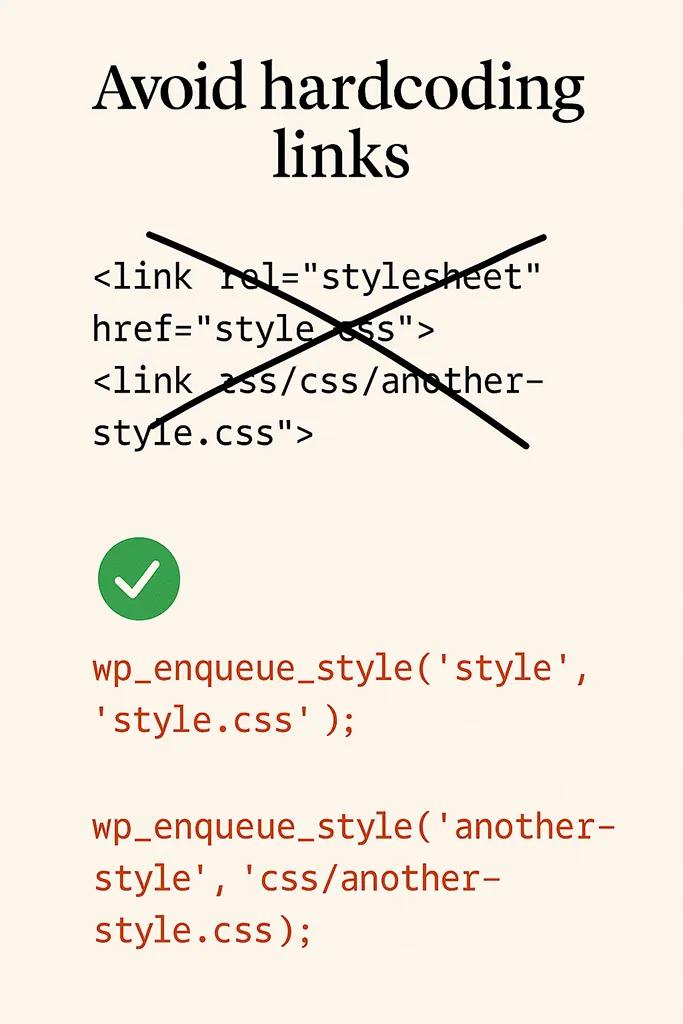
The part most tutorials get wrong, or gloss over, is asset loading. You cannot just link stylesheets directly in header.php with a hardcoded <link> tag and call it done. WordPress has a dependency management system for styles and scripts, and bypassing it causes plugin conflicts that are genuinely difficult to debug.
Everything goes through functions.php using the enqueue system. Here is how you register your converted site's stylesheet and a JavaScript file, hooked to the wp_enqueue_scripts action:
function mytheme_enqueue_assets() {
    wp_enqueue_style(
        'mytheme-style',
        get_stylesheet_uri(),
        array(),
        '1.0.0'
    );

    wp_enqueue_script(
        'mytheme-main',
        get_template_directory_uri() . '/js/main.js',
        array(), // dependencies, e.g. array('jquery')
        '1.0.0',
        true // load in footer
    );
}
add_action( 'wp_enqueue_scripts', 'mytheme_enqueue_assets' );
The version parameter matters. WordPress uses it for cache busting. If you update your CSS but forget to increment the version, visitors may see the old stylesheet from cache. During development I often use filemtime( get_template_directory() . '/style.css' ) as the version, which automatically updates whenever the file changes.
One thing that consistently trips people up: if your original HTML site loaded jQuery directly from a CDN, remove that. WordPress ships with jQuery and registers it as a dependency. Load jQuery twice and you get conflicts that look baffling until you remember what caused them.
Splitting HTML Into Template Parts
The practical work of conversion is taking your existing HTML and dividing it into the files WordPress expects. Most HTML sites have a recognisable structure: header with navigation, main content area, and footer. That maps onto header.php, various content templates, and footer.php.
The part where things get more interesting is when you need different layouts for different content types. Your HTML site probably has a homepage that looks different from the property listings page, which looks different from the contact page. In WordPress, you handle this with the template hierarchy: create front-page.php for the homepage, page-contact.php for a page with the slug "contact", and let more general templates handle everything else.
For reusable components - a property card that appears in multiple templates, for example - use get_template_part():
<?php get_template_part( 'partials/property-card' ); ?>
This loads partials/property-card.php from your theme directory. Keeping reusable pieces in a partials/ folder keeps the theme organised as it grows. You can also pass context to template parts using the second and third parameters in newer WordPress versions, though the exact API changed in WordPress 5.5 so check the documentation for your target version.
Navigation Menus and Widget Areas
Two things that catch people during conversion: navigation menus and widget areas. Your HTML site probably has navigation hardcoded in the header. To make it manageable through the WordPress admin, you need to register menu locations in functions.php and call wp_nav_menu() in the template.
// In functions.php
function mytheme_setup() {
    register_nav_menus( array(
        'primary' => 'Primary Navigation',
        'footer'  => 'Footer Navigation',
    ) );

    // Also add theme supports here
    add_theme_support( 'title-tag' );
    add_theme_support( 'post-thumbnails' );
}
add_action( 'after_setup_theme', 'mytheme_setup' );

// In header.php, where the nav should appear
wp_nav_menu( array(
    'theme_location' => 'primary',
    'container'      => 'nav',
    'container_class' => 'site-nav',
) );
The add_theme_support( 'title-tag' ) line is easy to miss and important: without it, WordPress will not manage the page title tag, and your SEO setup will be off. Similarly, add_theme_support( 'post-thumbnails' ) is required if you want to use featured images.
Custom Post Types for Property Content
If you are converting a real estate website, you will almost certainly want a custom post type for properties rather than using the default Posts. This keeps property content separate from blog posts and gives you control over the URL structure and the admin interface.
function mytheme_register_property_post_type() {
    register_post_type( 'property', array(
        'labels'      => array(
            'name'          => 'Properties',
            'singular_name' => 'Property',
        ),
        'public'      => true,
        'has_archive' => true,
        'rewrite'     => array( 'slug' => 'properties' ),
        'supports'    => array( 'title', 'editor', 'thumbnail', 'custom-fields' ),
        'menu_icon'   => 'dashicons-building',
    ) );
}
add_action( 'init', 'mytheme_register_property_post_type' );
With this in place, WordPress's template hierarchy extends to your custom post type. single-property.php will handle individual property pages, and archive-property.php will handle the listing archive at /properties/. This is significantly cleaner than trying to shoehorn property content into WordPress pages or posts.
The Maintenance Question Nobody Mentions
Here is where I need to be direct about something that most HTML-to-WordPress guides skip entirely: WordPress has a significant ongoing maintenance cost.
According to Patchstack's 2025 State of WordPress Security report, nearly 8,000 new vulnerabilities were reported across the WordPress ecosystem in 2024, with 96% of them in plugins. About 33% of those vulnerabilities were not patched before public disclosure. Many are in abandoned plugins that still have active installations.
This is not a reason to avoid WordPress, but it is a reason to understand what you are signing up for. A WordPress site requires regular core updates, plugin updates, and theme updates. Each update has a small but non-zero chance of breaking something. Running a WordPress site without a maintenance plan is the web equivalent of owning a car and skipping all servicing.
For clients who have the resource to maintain it properly - or who are paying for managed WordPress hosting that handles updates automatically - this is manageable. For solo property developers who want to update their listings occasionally and otherwise not think about their website, it is worth asking whether WordPress is actually the simplest path to that goal.
When to Consider Not Using WordPress
The reason I do not build client sites on WordPress is not that WordPress is bad. It is that for the kinds of projects I work on - property developer websites, architect portfolios, estate agency brand sites - the alternatives fit better.
Webflow handles the "client needs to update content without developer involvement" requirement without requiring plugin management or security updates. The hosting is managed, the CMS is built into the design environment, and the client editor is separated from the design tools in a way that makes it hard to accidentally break the layout.
For more technically complex projects where I need a proper API backend alongside a content-managed front-end, Astro with a headless CMS is the stack I reach for. The content management is handled by the CMS (Sanity, Contentful, or similar), the front-end is pre-rendered at the edge, and there is no PHP runtime to keep patched. The Astro framework has become my default for property developer sites specifically because it can handle both static content and dynamic sections (property listings, contact forms) without requiring a server.
If your HTML site's content is genuinely simple - a brochure that gets updated a few times a year - the migration path I would actually recommend is often not WordPress but Webflow or a modern static site generator with a simple headless CMS like Sanity or Contentful. Less ongoing maintenance, better performance out of the box, and for clients, a generally easier editing experience.
When WordPress Is the Right Answer
WordPress makes sense when you have a content-heavy site with a lot of posts, categories, and taxonomies. Its database structure and The Loop are genuinely well-suited to blog-style content, news sites, and anything with a significant archive of posts.
It also makes sense when you need the plugin ecosystem. If the project requires WooCommerce, a specific membership system, a form builder with particular functionality, or integration with a service that only has a WordPress plugin - these are real reasons to choose WordPress rather than alternatives.
If you are joining a project that already has a WordPress codebase, obviously continue with WordPress. Introducing a different stack into an existing project adds complexity that is rarely worth it.
And if your clients or team are already familiar with the WordPress admin - if they know how to use posts, pages, and the media library - there is real value in not making them learn something new. Familiarity has operational value that technical comparisons tend to underweight.

FAQ: Converting HTML to WordPress
Do I need to use a local development environment for this?
Yes, and the reason is basic version control hygiene rather than caution for its own sake. If you are developing your theme directly against a live site, every intermediate state of your code is visible to users and potentially broken. Local by WP Engine is the easiest local WordPress environment to set up - it handles PHP, MySQL, and Nginx configuration in a single installer. Once you have a working theme locally, you deploy to staging, test, then push to production. This workflow is standard and saves the kind of debugging that happens when you are trying to figure out why something worked locally but not live.
How do I convert CSS from my HTML site to work with WordPress?
In most cases, your existing CSS works without modification. The main thing to check is that your selectors are not too generic in ways that might conflict with WordPress's own styles - things like overriding img { max-width: 100%; } globally can occasionally conflict with how certain plugins output images. More commonly, the issue is that WordPress's admin bar adds 32 pixels to the top of the viewport when a logged-in user views the front-end, which can break fixed-position headers. The fix is a simple CSS addition: body.admin-bar .site-header { top: 32px; }. Everything else - your grid, typography, colour system - carries over directly.
Is there a way to preserve my HTML site's URL structure when migrating to WordPress?
Yes, through WordPress's permalink settings and in some cases 301 redirects. If your HTML site had URLs like /about.html and /contact.html, WordPress pages with those slugs will generate /about/ and /contact/ by default. For SEO, you want to either match the original URL structure exactly (which requires changing WordPress's permalink settings and potentially the .htaccess file) or create 301 redirects from old URLs to new ones. The latter is usually easier - the Redirection plugin handles this through the WordPress admin without requiring server configuration access. Do not skip this step: broken URLs lose whatever search equity your old site had accumulated.
Should I use a classic WordPress theme or a block theme for this conversion?
If you are comfortable with PHP and are building the theme yourself, a classic theme with PHP template files is still the right approach. The template hierarchy, hooks system, and PHP template logic are well-documented, widely understood, and give you complete control. Block themes - which use HTML template files and the Site Editor - are the direction WordPress is heading, but the tooling is still maturing and the development workflow is less familiar to most developers coming from a PHP background. If you are building for a client who wants to use the site editor to drag and drop sections, a block theme makes sense. If you are a developer who wants to build a precise, custom theme with clean separation between structure and content, the classic approach is less friction.
Is it worth converting to WordPress if my site is mostly static?
Probably not. WordPress adds a PHP runtime, a MySQL database, session management, and an admin interface to what was previously a collection of HTML files. All of that has a performance and maintenance cost. If your site has five pages and gets updated a couple of times a year, the overhead is not justified. If the actual requirement is "we need to be able to update text and images without touching code," there are lighter options. A headless CMS like Sanity or Contentful can sit behind a static front-end and give non-technical users an editing interface without requiring a server. This setup delivers faster performance, lower hosting costs, and no plugin security surface to manage.